

Shofarpulse Vendor Registration: Complete Step-by-Step Guide
Shofarpulse Vendor Registration is the first step to start selling your ministry products online and reach a wider audience. This guide will walk you through the entire process—from landing on the website to setting up your vendor dashboard.
Table of Contents
What is Shofarpulse Vendor Registration?
Step 1: Visit the Website
Step 2: Click “Sell on Shofarpulse”
Step 3: Become a Vendor
Step 4: Fill the Registration Form
Step 5: Email Verification
Step 6: Complete Registration
Step 7: Store Setup
Step 8: Payment Setup
Step 9: Store Policies
Step 10: Customer Support Setup
Step 11: Social Setup
Step 12: Access Dashboard
Common Mistakes to Avoid
What is Shofarpulse Vendor Registration?
Shofarpulse Vendor Registration allows individuals, ministries, and literature evangelists to create a store and sell products such as Bibles, devotionals, and ministry materials.
This platform helps you expand your reach and connect with people who are searching for truth-based resources.
Step 1: Visit the Website
Go to Shofarpulse Official Website. This is where your journey begins.
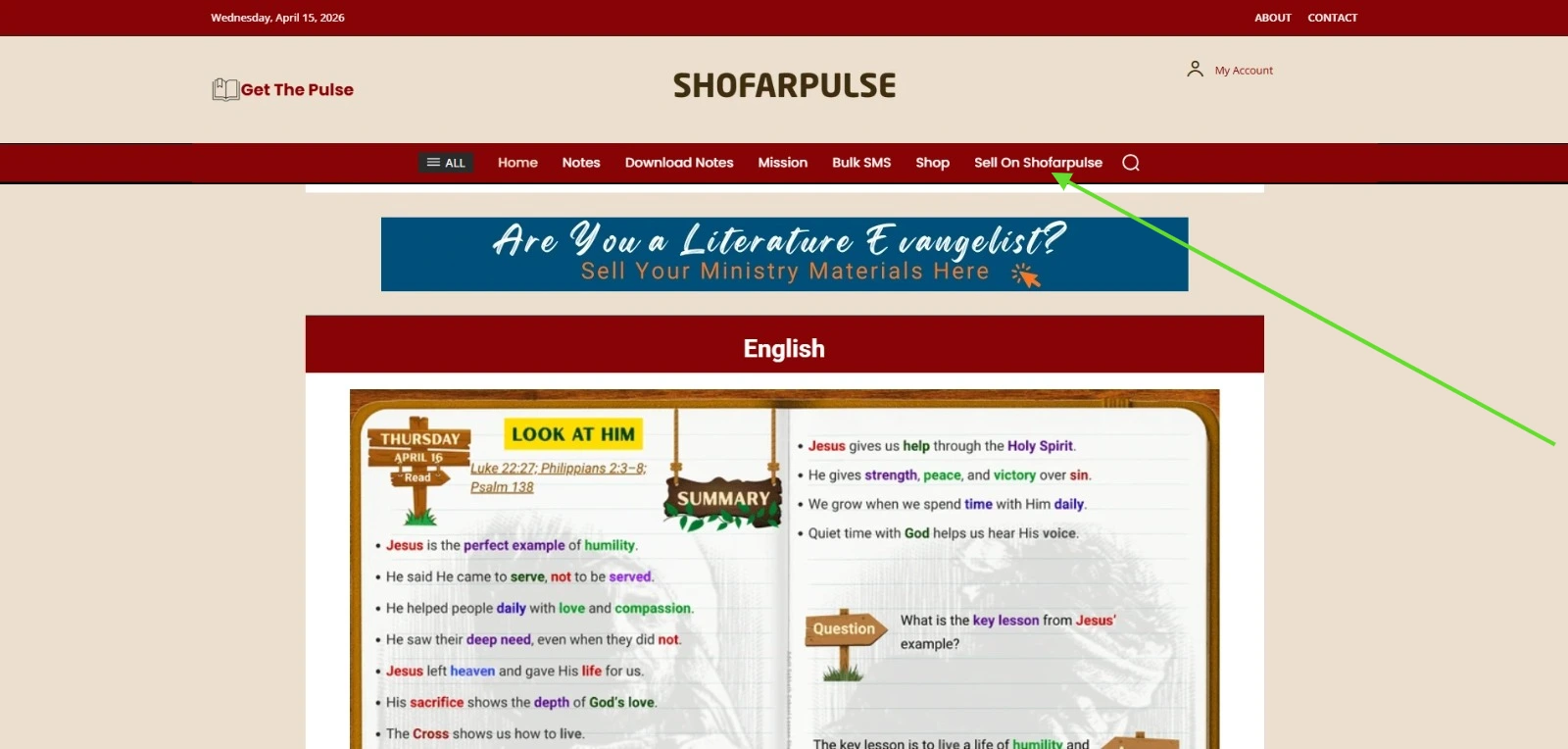
Step 2: Click “Sell on Shofarpulse”
On the homepage, locate the menu and click Sell on Shofarpulse.
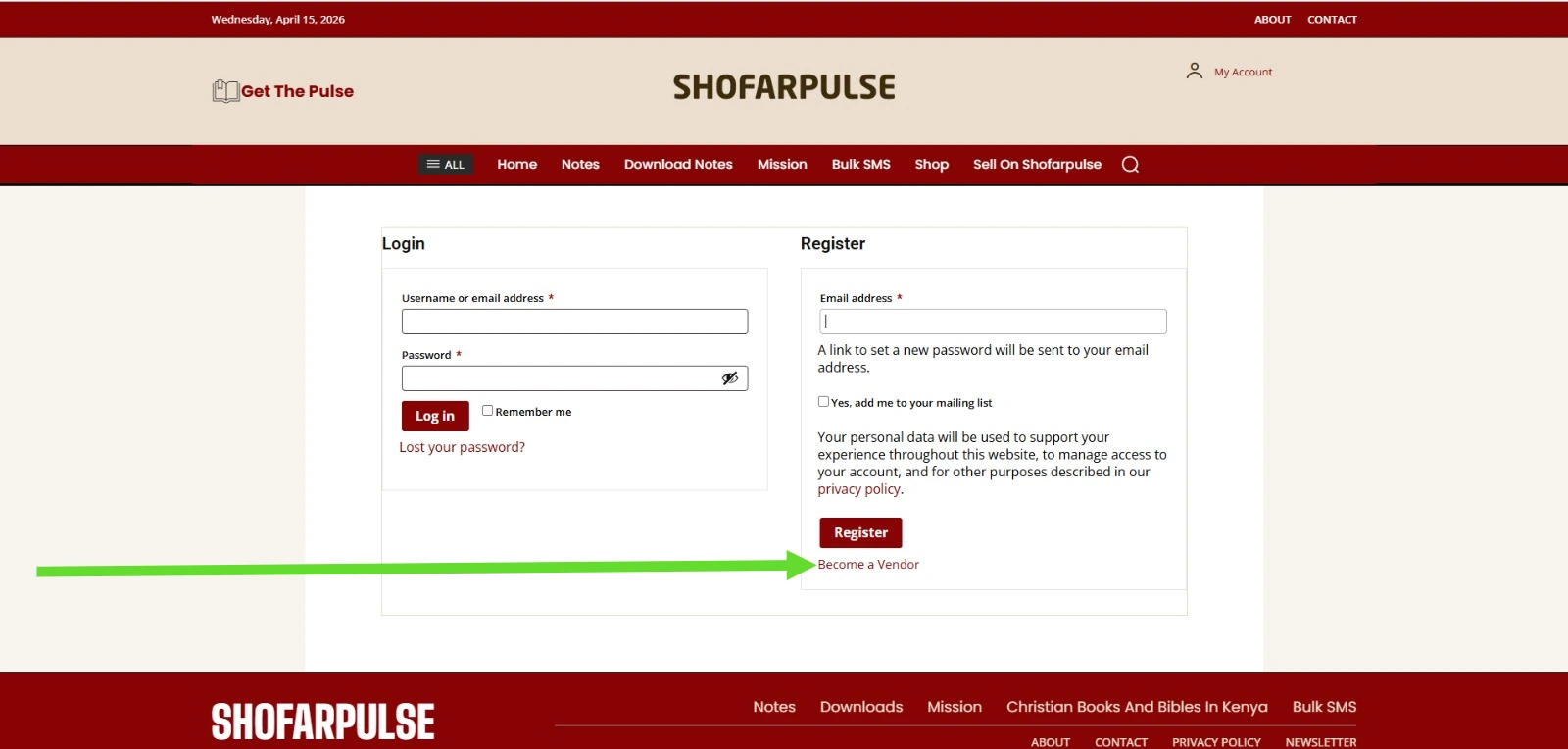
Step 3: Click “Become a Vendor”
If you are new, click Become a Vendor. This ensures you register as a seller, not just a customer.
If you are already registered, login with your email and password.
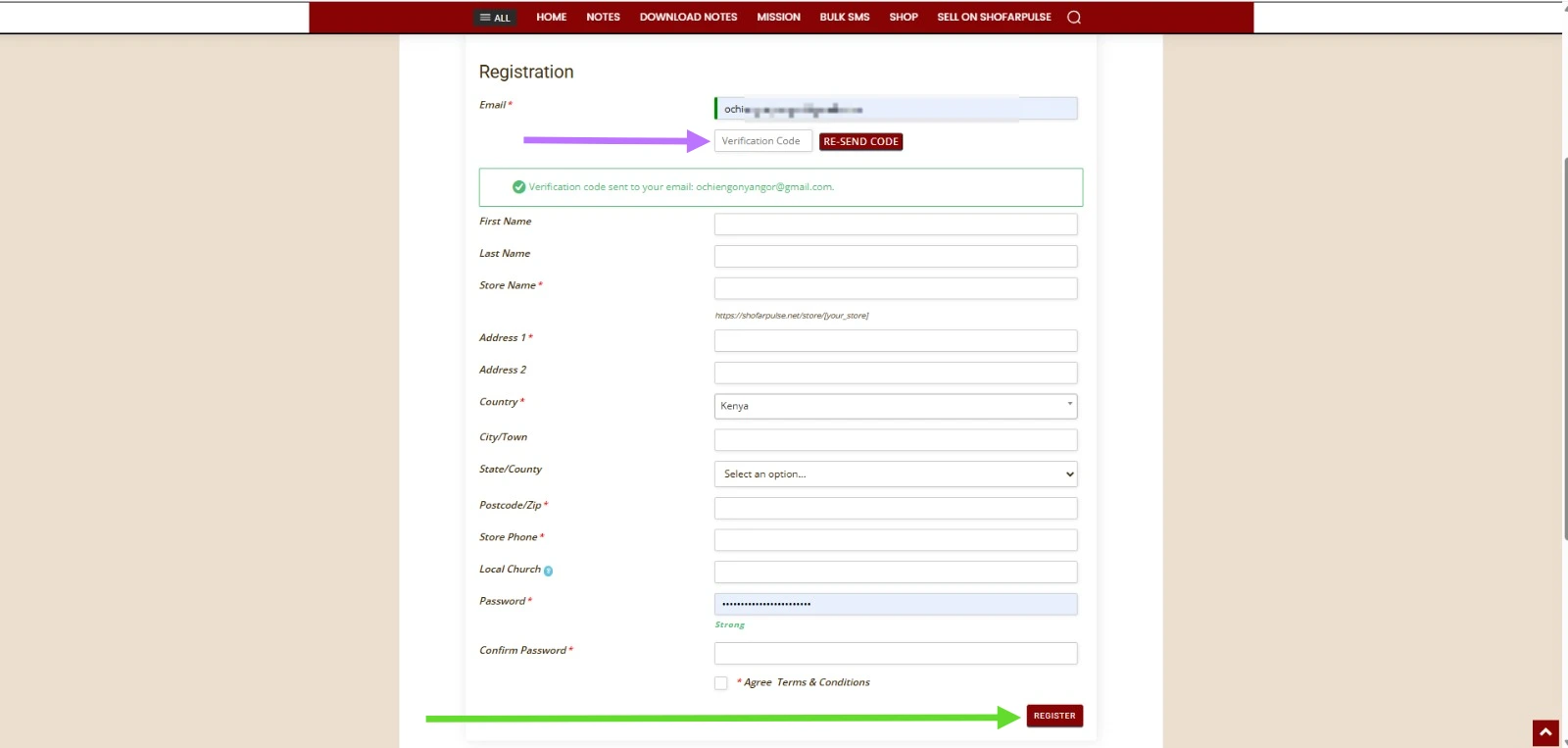
Step 4: Fill the Shofarpulse Vendor Registration Form
Enter all required details carefully:
- Email address
- Name
- Store name
- Address
- Phone number
- Password
Make sure your email is valid and accessible.
Step 5: Email Verification
You will receive a verification code via email.
Enter the code and continue registration.
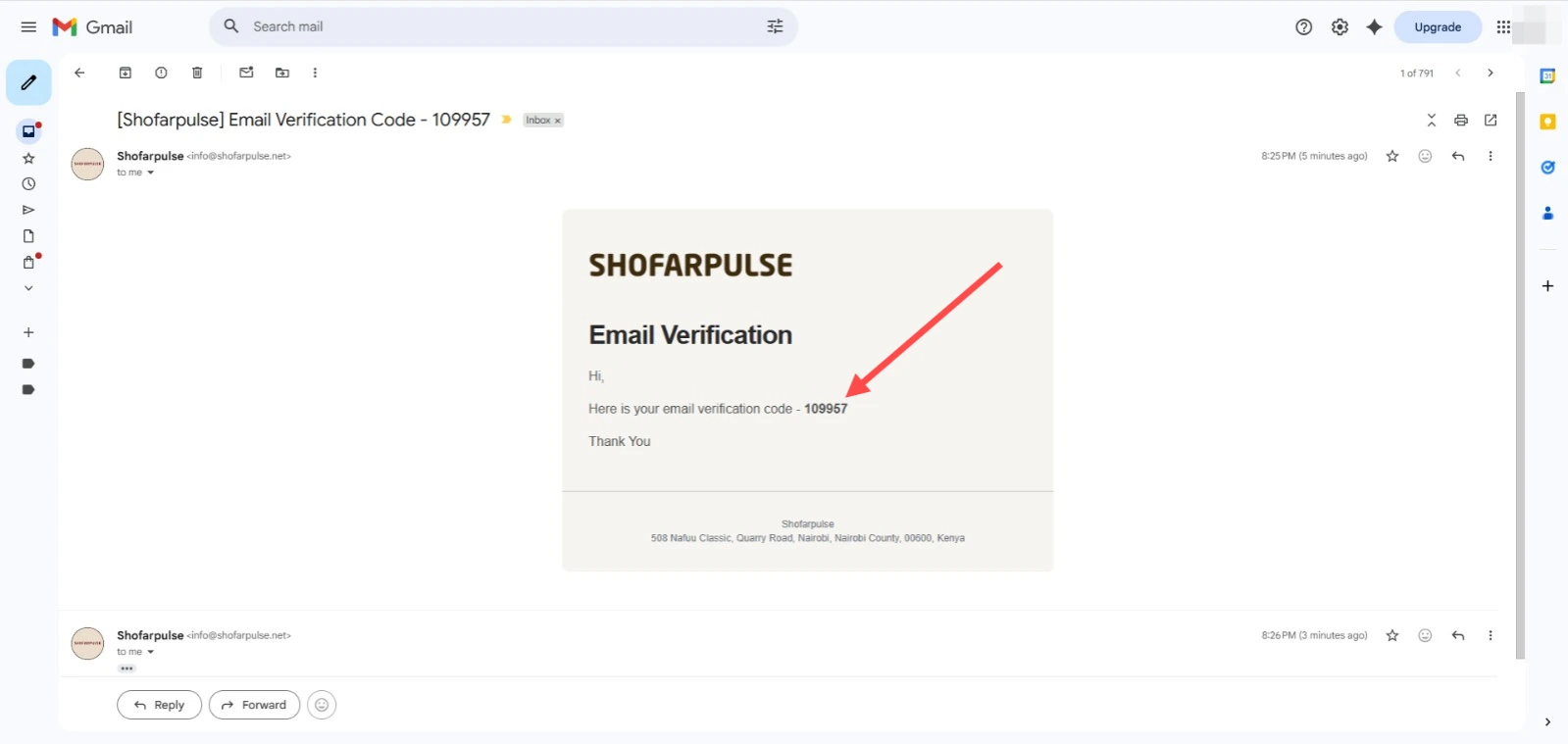
If needed, click Re-send Code.
Step 6: Complete Registration
Click Register after filling all details.
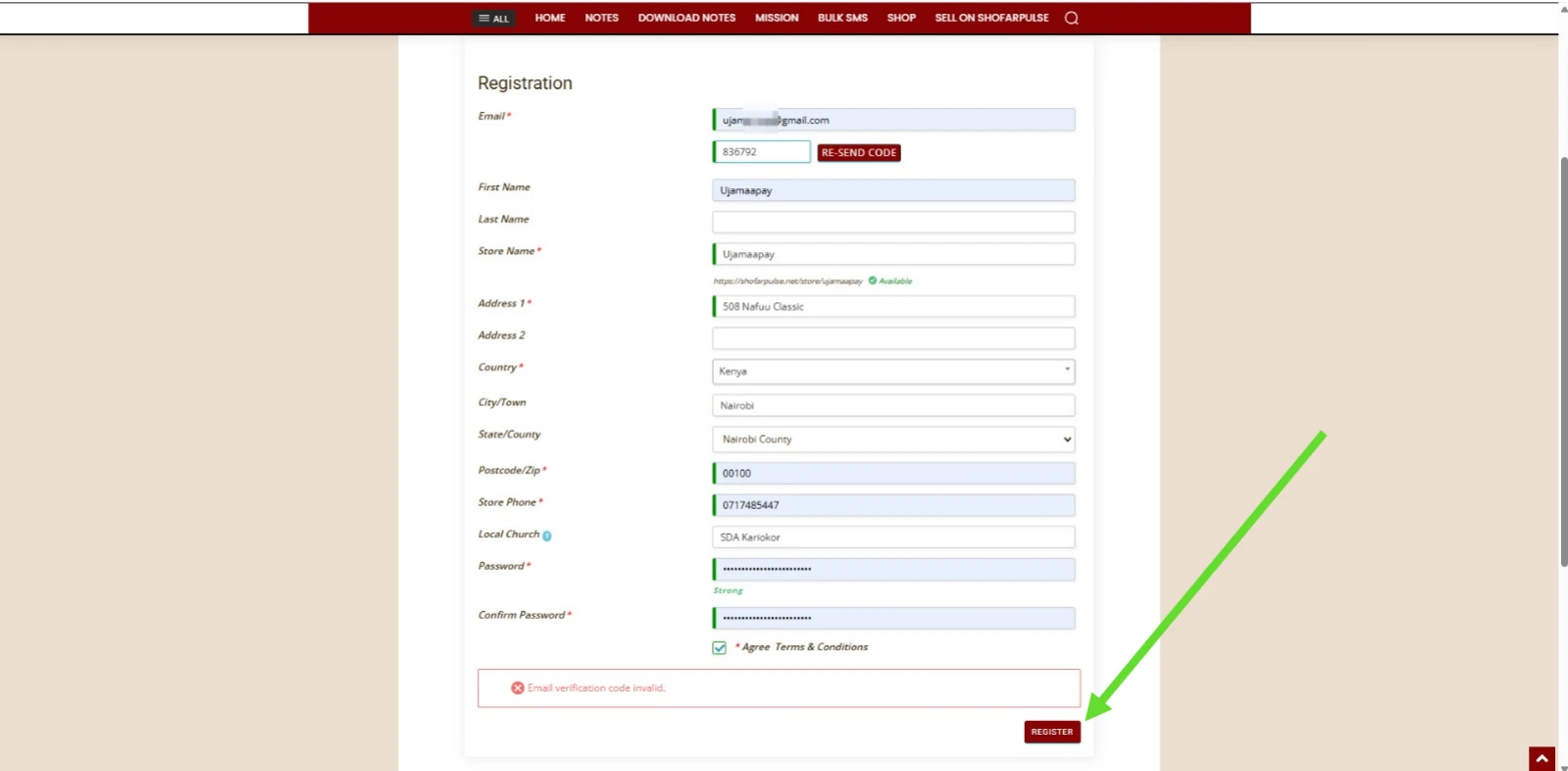
You will be redirected to the onboarding screen.
Step 7: Store Setup
Click Let’s go to start setting up your store.
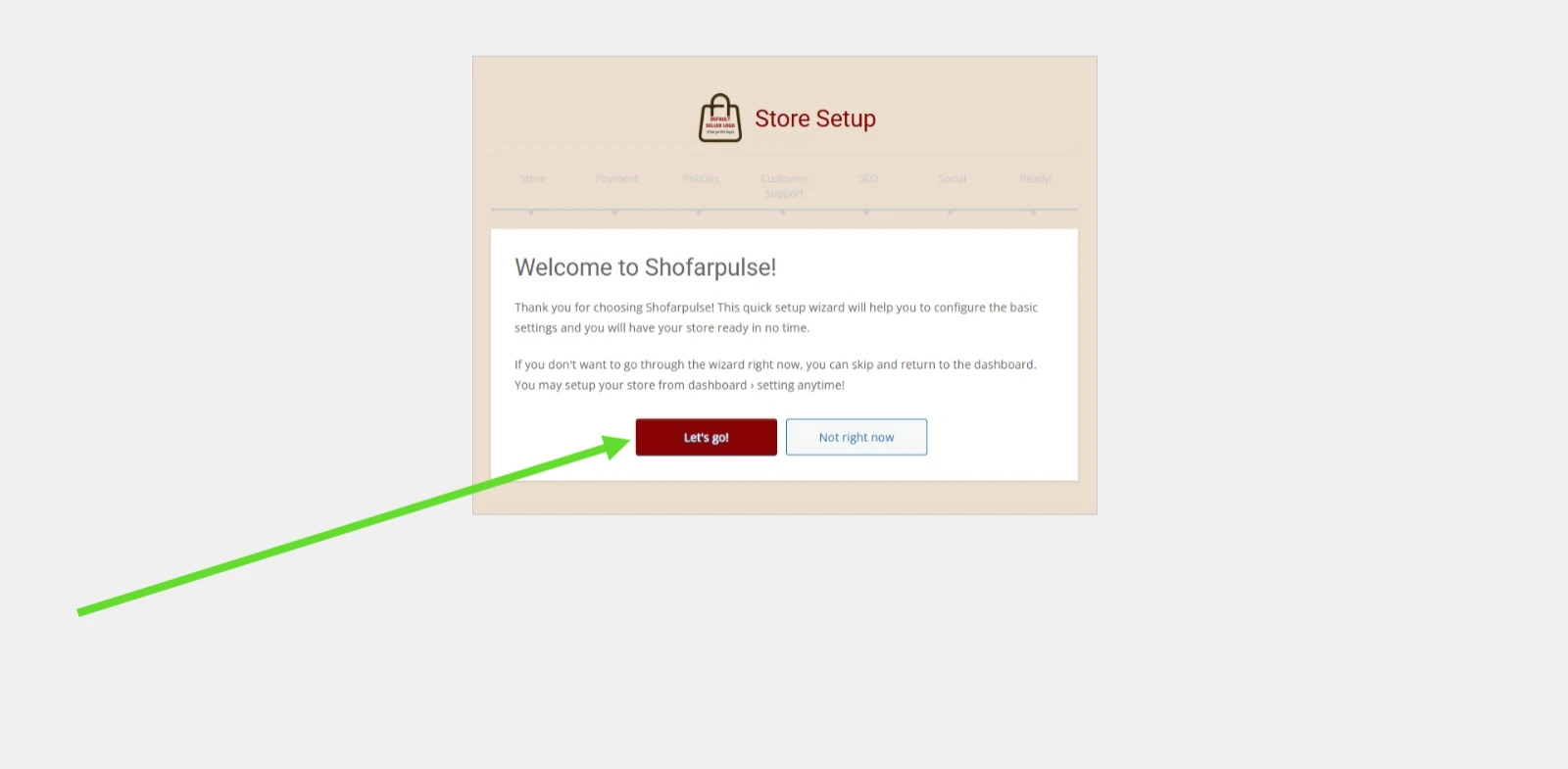
Provide:
- Store logo
- Store banner
- Store description
- Location
Step 8: Payment Setup
Choose your preferred payment method:
- PayPal
- Bank Transfer
Ensure your details are accurate to receive payments.
Step 9: Store Policies
Set your policies:
- Shipping
- Refunds
- Returns
You may adopt platform policies or create your own.
Step 10: Customer Support Setup
Provide contact details where customers can reach you:
- Phone
- Address
Step 11: Social Setup
Add your social media links (optional):
- YouTube
Step 12: Access Your Dashboard
After setup, click Go to Dashboard.
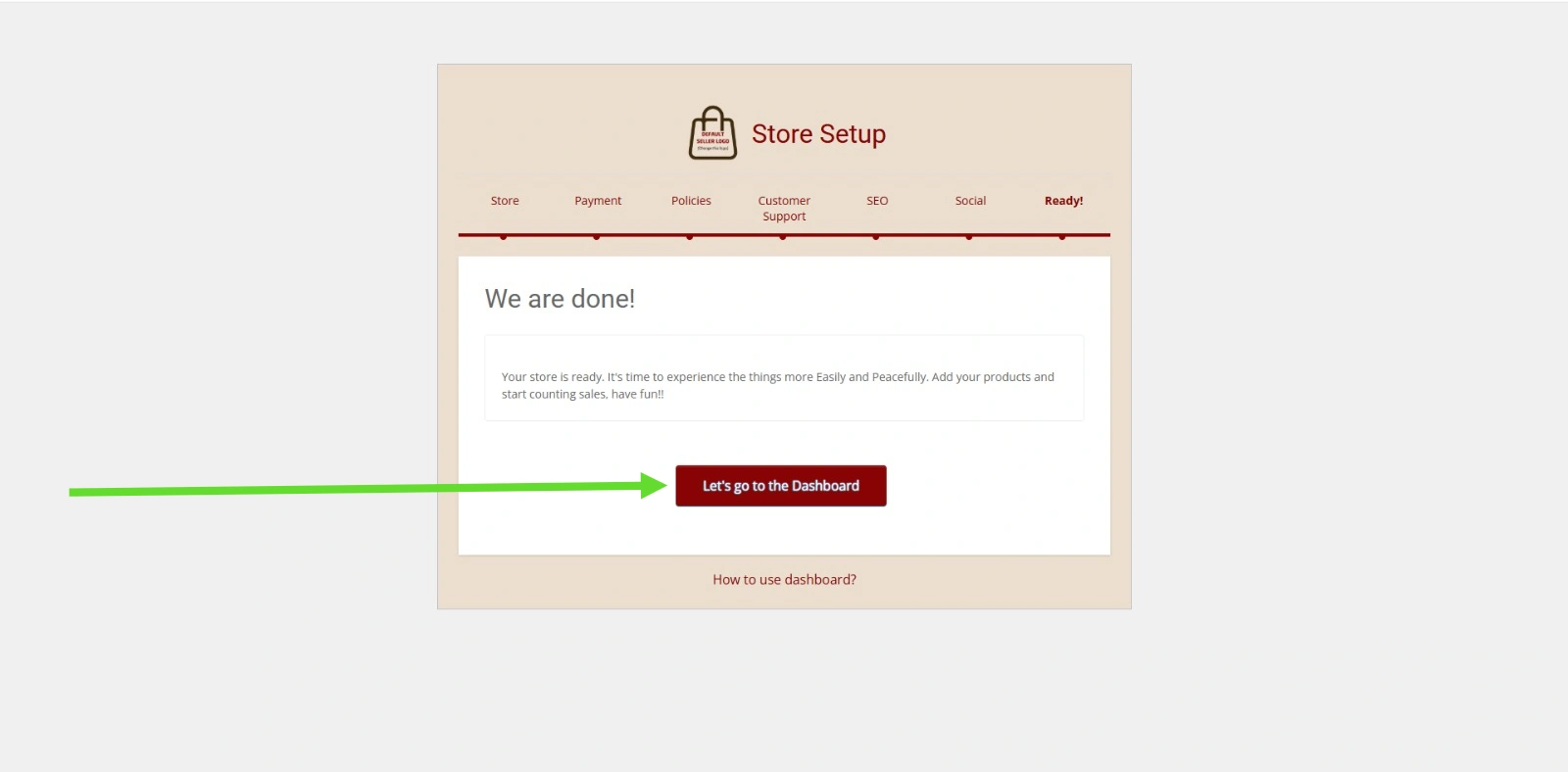
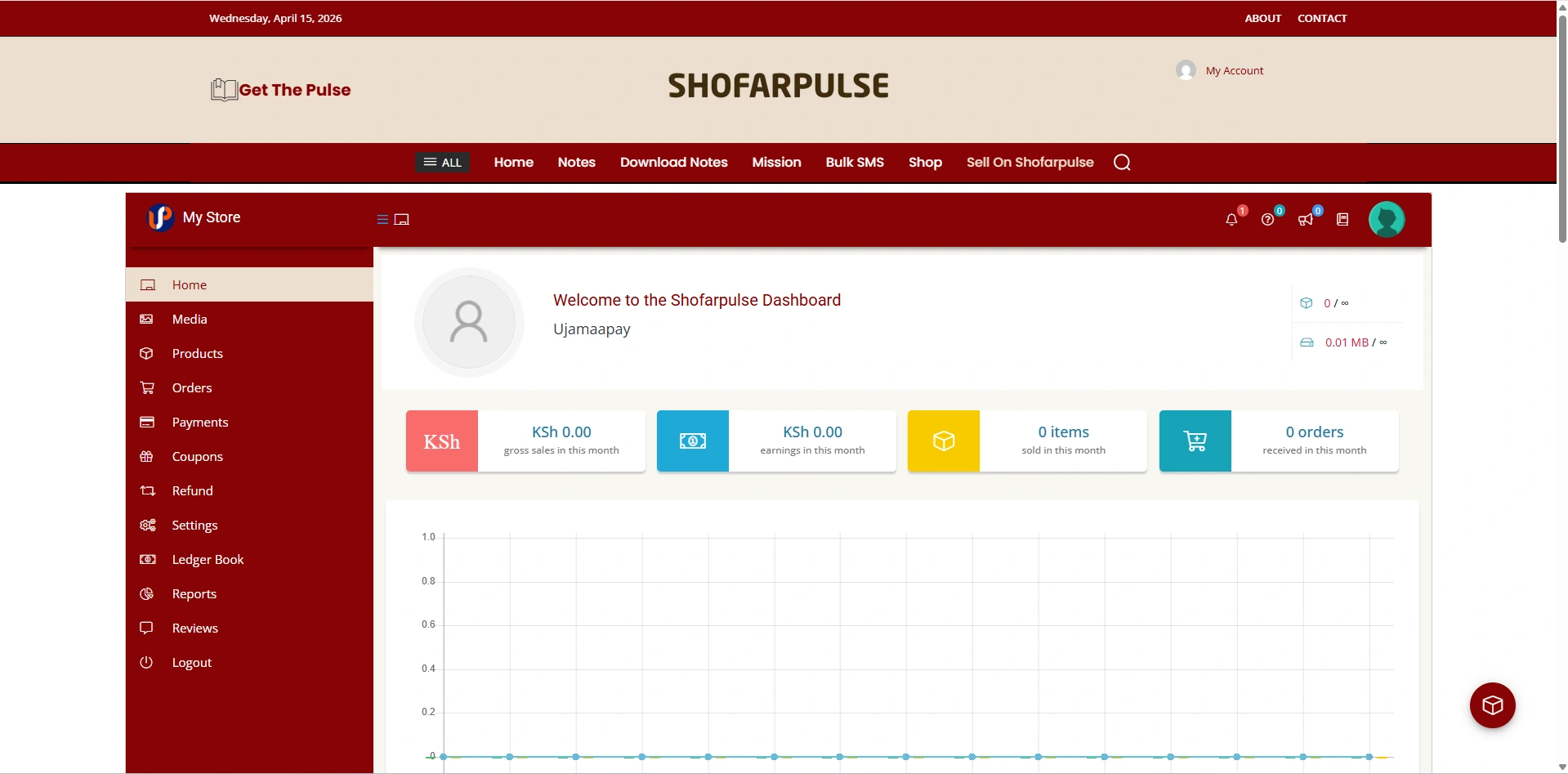
From there, you can:
- Add products
- Manage orders
- Track sales
Common Mistakes to Avoid in Shofarpulse Vendor Registration
- Using an invalid email
- Skipping store setup
- Entering incorrect payment details
- Leaving policies unclear
Helpful Resources
Learn more about eCommerce best practices from
WooCommerce Documentation.
Also read our internal guide:
Vendor Dashboard Guide.
Final Thoughts
Shofarpulse Vendor Registration is your gateway to expanding your ministry and reaching more souls through digital platforms.
Take time to set up your store properly and begin your sales journey today.